The front desk's day with therapy patients
On this page
In a therapy practice the work splits in two. The professional sees the patient and signs the note of each session. The front desk books, sells the packages, takes payment and invoices. This guide is the front desk’s part.
You do not need to record the visit: when the professional signs the session, the appointment moves to Completed on its own and the session is ready for the invoice and the RIPS.
For all of this you need the Assistant role. Whoever runs the practice assigns it in Team — see How to invite a team member. With that role, the patient’s record shows you Administrative, Billing and Information. The clinical record belongs to the professional.
1. Book the sessions
Book each session as a normal appointment from Appointments → New Appointment, with the therapy service and the professional who sees the patient — see How to book an appointment.
If the patient has a current package for that service, the appointment draws one session from the package when it is booked and charges nothing. To book all of a package’s sessions at once, open the patient’s record, go to Administrative and press Schedule the month on the package.
2. Sell this month’s package
- Open the patient’s record and go to Administrative.
- Under Packages, press Sell package.
- Pick the package and press Create invoice and pay link.
- If the family pays by card, share the link. If they pay by transfer or in cash, record the payment as in section 3.
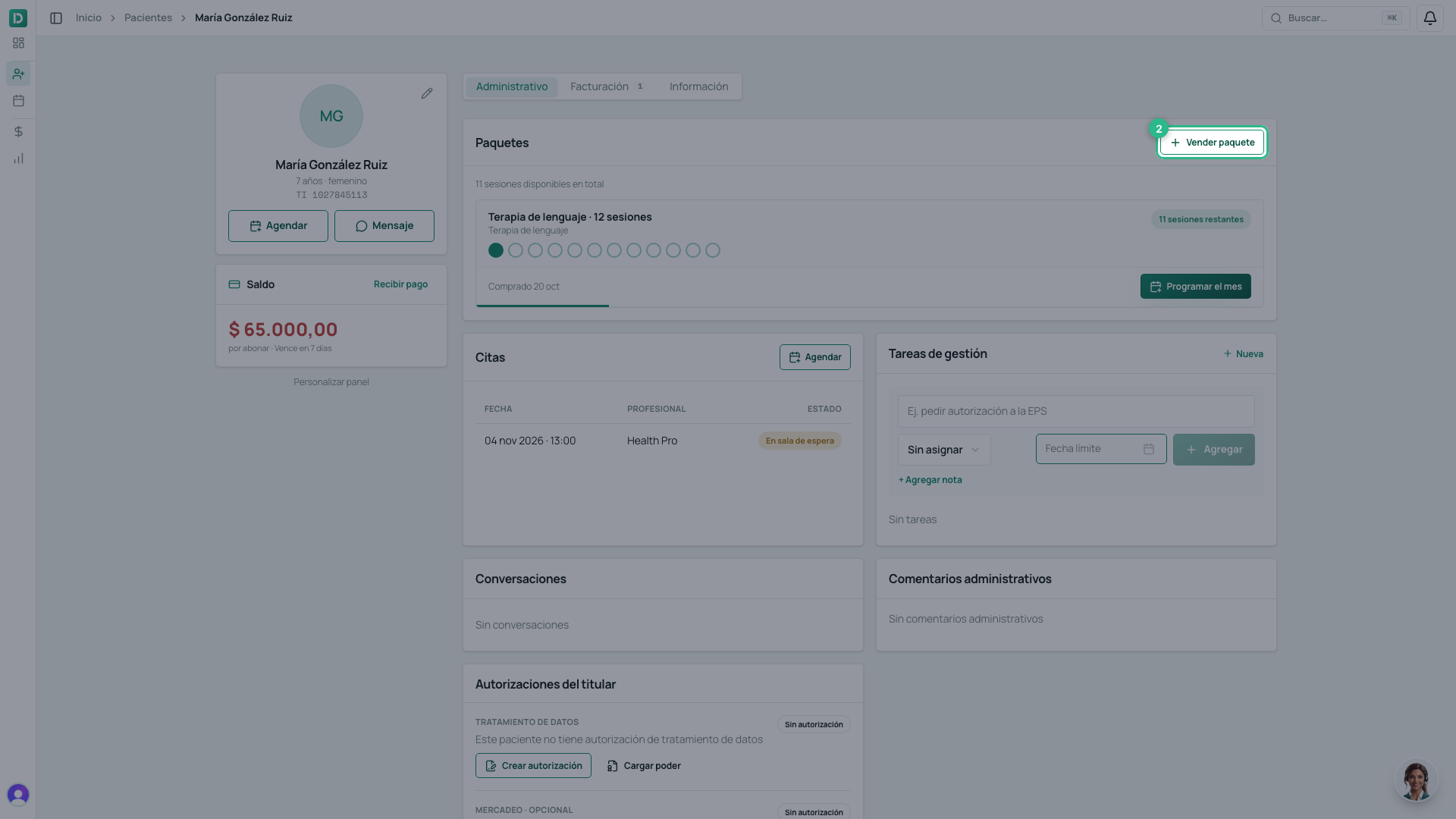
The package’s sessions appear when the payment comes in, not before — see How to sell session packages.
3. Collect what is owed
- In the patient’s record, open Billing and press Receive payment.
- Tick the invoice you are collecting.
- Press Pay balance, or Other amount for a partial payment.
- Press Record payment.
The details are in How to collect and record a patient payment.
4. The electronic invoice
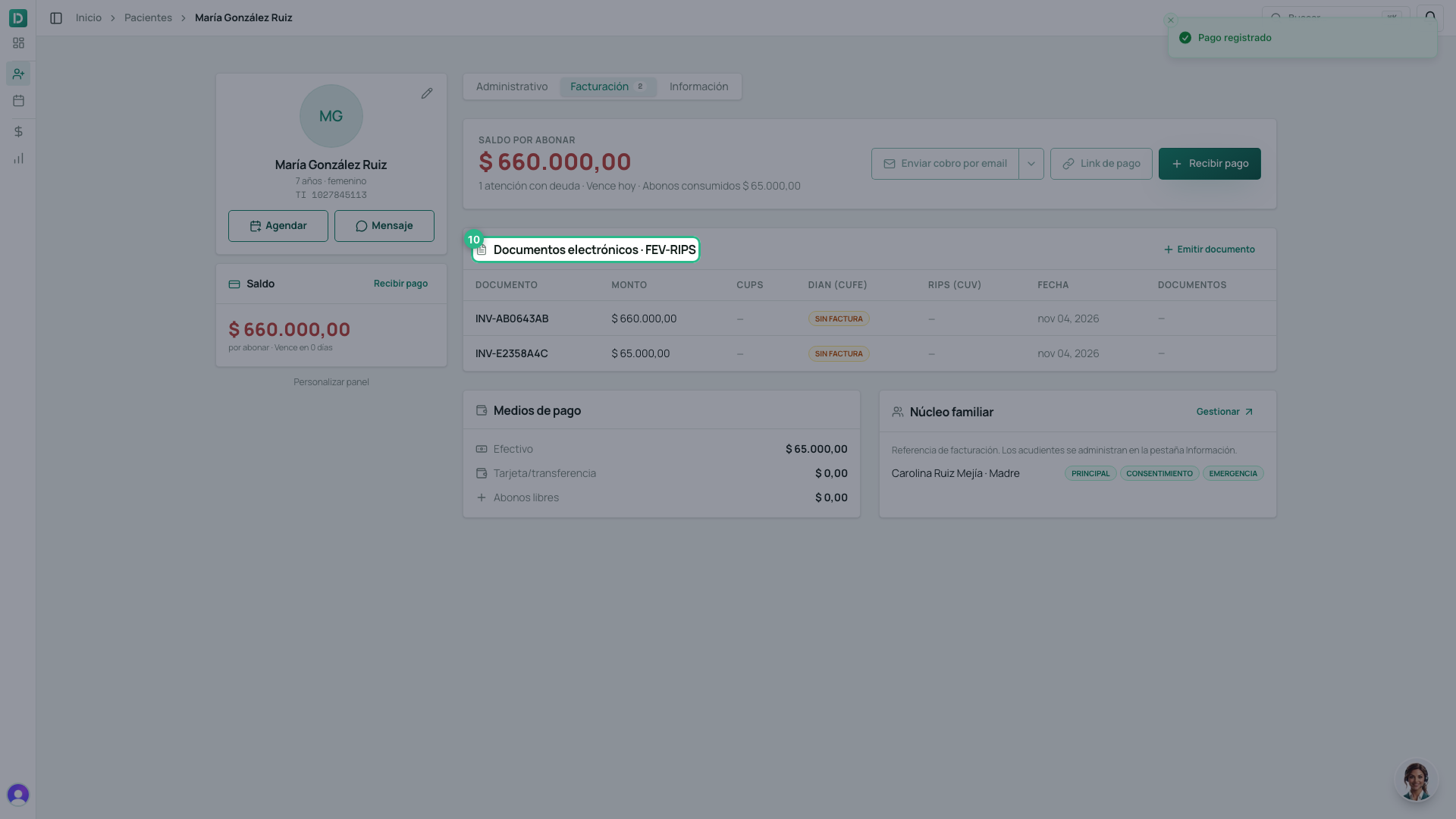
Invoices filed with the DIAN are under Billing → Electronic documents · FEV-RIPS, one row per invoice with its DIAN status. A document is also issued from there — see How to issue an electronic invoice (DIAN).
5. Before closing the day
Open Appointments on Today and check the statuses:
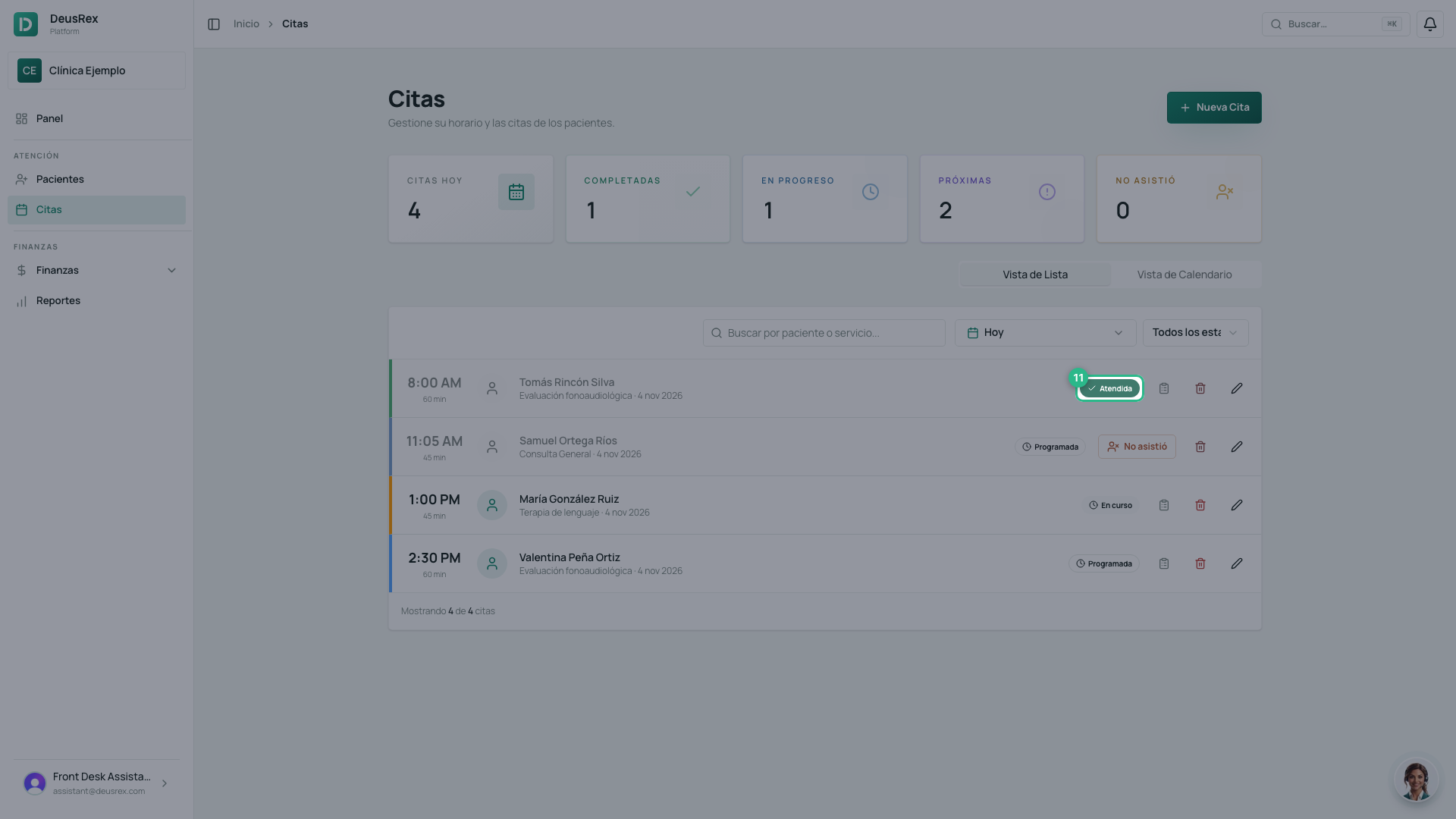
| Status | What to do |
|---|---|
| Completed | Nothing. The session is signed. |
| In progress | The session was opened but not signed. Remind the professional: without a signature it does not reach the RIPS. |
| Scheduled or Confirmed after its time | The patient did not come. Press No-show. |
If a package patient cancels, the session is spent. If you only need to change the day, reschedule: moving an appointment spends nothing.